Como Verificar se um Texto Tem Marca d'Água do ChatGPT (Guia Completo 2025)
Aprenda 7 métodos comprovados para verificar se um texto tem marcas d'água do ChatGPT. De ferramentas online instantâneas a técnicas avançadas de detecção—identifique marcadores invisíveis de IA em qualquer conteúdo.

Introdução
Precisa verificar se um texto contém marcas d'água do ChatGPT? Seja verificando trabalhos de alunos, revisando documentos, depurando código ou simplesmente por curiosidade, este guia fornece sete métodos confiáveis para detectar marcadores invisíveis de IA.
De verificadores online instantâneos a abordagens técnicas avançadas, você aprenderá como identificar marcas d'água do ChatGPT com confiança—mesmo quando elas são projetadas para serem indetectáveis.
Resposta Rápida: A Maneira Mais Rápida de Verificar
O Método de 30 Segundos:
- Visite GPT Watermark Remover
- Cole seu texto (ou carregue documento)
- Clique em "Check for Watermarks" ou "Detect"
- Veja os resultados instantâneos
O que você verá:
- ✅ "No watermarks detected" (texto limpo)
- ⚠️ "47 watermarks found" (detalhamento detalhado)
Tempo: 5-10 segundos Precisão: 99%+ para marcas d'água baseadas em caracteres Privacidade: 100% baseado no navegador
Agora vamos explorar todos os métodos em detalhes.
Método 1: Verificador Online de Marca d'Água (Recomendado)
Por Que Este Método é o Melhor
Vantagens: ✅ Não requer conhecimento técnico ✅ Resultados instantâneos (menos de 10 segundos) ✅ Detecta todos os tipos comuns de marca d'água ✅ Destacamento visual de áreas problemáticas ✅ Funciona com documentos (Word, Pages, PDF) ✅ 100% privado (processamento no navegador) ✅ Verificações ilimitadas gratuitas
Processo Passo a Passo
Passo 1: Prepare Seu Texto
Para texto simples:
- Copie o texto que deseja verificar
- Nenhuma preparação especial necessária
Para documentos:
- Mantenha o arquivo no formato original (.docx, .pages, .pdf)
- Nenhuma conversão necessária
Passo 2: Acesse o Verificador
Navegue até GPT Watermark Remover
Passo 3: Insira Seu Conteúdo
Opção A - Colar Texto:
- Clique na área de texto
- Cole o conteúdo (
Ctrl+V/Cmd+V) - O texto pode ter qualquer comprimento
Opção B - Carregar Documento:
- Clique em "Upload Document"
- Selecione o arquivo do computador
- Formatos suportados: .docx, .pages, .pdf, .txt, .rtf
Passo 4: Execute a Detecção
Clique no botão de detecção:
- "Check for Watermarks"
- "Detect Invisible Characters"
- "Analyze Text"
Passo 5: Interprete os Resultados
Resultado de Texto Limpo:
✓ No ChatGPT watermarks detected

Analysis:
- Zero-width spaces: 0
- Zero-width non-joiners: 0
- Zero-width joiners: 0
- Other invisible characters: 0

Assessment: This text appears clean
Resultado de Texto com Marca d'Água:
⚠ Watermarks Detected: 47 invisible characters
Breakdown:
- Zero-Width Space (U+200B): 23 occurrences
- Zero-Width Non-Joiner (U+200C): 15 occurrences
- Zero-Width Joiner (U+200D): 9 occurrences
Distribution: Regular pattern detected
Density: 4.7 watermarks per 100 characters
Likelihood: High probability of AI watermarking
Location Preview:
Line 3: "The implementation of this..."
Line 7: "We recommend using the..."
[View all locations]
Recommendation: Remove watermarks before use
Passo 6: Tome Ação
Com base nos resultados:
- Sem marcas d'água: Texto está limpo, use livremente
- Marcas d'água encontradas: Clique em "Remove Watermarks" para versão limpa
Interpretando a Densidade de Marca d'Água
| Densidade | Contagem (por 1000 caracteres) | Avaliação |
|---|---|---|
| Nenhuma | 0 | Texto limpo |
| Muito Baixa | 1-5 | Possivelmente acidental |
| Baixa | 6-20 | Suspeito |
| Média | 21-50 | Provavelmente com marca d'água |
| Alta | 51-100 | Definitivamente com marca d'água |
| Muito Alta | 100+ | Fortemente marcado |
Método 2: Teste de Comparação de Contagem de Caracteres
Este método simples revela caracteres invisíveis sem ferramentas.
Como Funciona
Caracteres invisíveis aumentam o tamanho do arquivo, mas não a contagem visual de caracteres.
Processo Passo a Passo
Passo 1: Verifique a Contagem Visual de Caracteres
No Microsoft Word:
- Selecione todo o texto (
Ctrl+A/Cmd+A) - Verifique a barra de status (mostra contagem de caracteres)
- Anote: "1.247 caracteres"
No Google Docs:
- Ferramentas → Contagem de palavras
- Anote a contagem de caracteres (com espaços)
Em qualquer editor de texto:
- Selecione tudo e copie
- Cole em um contador de caracteres (pesquise "contador de caracteres online")
- Anote a contagem
Passo 2: Verifique o Tamanho em Bytes
Windows:
# Salve o texto como arquivo UTF-8, depois:
dir /s filename.txt
# Anote o tamanho em bytes
Mac/Linux:
wc -c filename.txt
# Retorna a contagem de bytes
Ou use programação:
const text = "Your text here";
const byteSize = new Blob([text]).size;
console.log(`Bytes: ${byteSize}`);
Passo 3: Compare
Caracteres visuais: 1.247
Tamanho em bytes: 1.312 bytes

Diferença: 65 bytes
Caracteres invisíveis: ~21 (assumindo 3 bytes por caractere)

Veredicto: O texto contém caracteres invisíveis (provavelmente marcas d'água)
Regra geral:
- Diferença < 5 bytes: Provavelmente limpo
- Diferença 5-20 bytes: Possivelmente alguns caracteres invisíveis
- Diferença > 20 bytes: Provavelmente com marca d'água
Limitações
- Não identifica quais caracteres ou onde
- Diferentes codificações afetam contagens de bytes
- Não consegue distinguir entre marcas d'água e Unicode legítimo
Método 3: Verificação de Visibilidade no Editor de Texto
A maioria dos editores de texto pode revelar caracteres invisíveis se você souber onde procurar.
Microsoft Word
Método A: Mostrar Marcas de Formatação
- Clique na guia "Página Inicial"
- Clique em ¶ (botão Mostrar/Ocultar) no grupo Parágrafo
- Procure por pontos ou marcas incomuns entre palavras
- Espaço normal aparece como
·(ponto no meio) - Caracteres invisíveis aparecem como pequenas caixas ou nada
Método B: Teste de Copiar-Colar
- Copie o texto para o Bloco de Notas simples
- Cole e procure por:
- Quebras de linha inesperadas
- Espaçamento incomum
- Comportamento estranho do cursor
- Tente selecionar o texto—caracteres invisíveis aparecem como lacunas na seleção
Método C: Função Localizar
- Pressione
Ctrl+F - Clique em "Mais >>"
- Pesquise por:
^u200B - Se encontrado: marcas d'água presentes
- Repita para:
^u200C,^u200D,^u00AD,^u2060
VS Code / Editores de Texto
Ative a visualização de espaços em branco:
VS Code:
- Exibir → Renderizar Espaços em Branco
- Ou pressione
Ctrl+Shift+P→ "View: Toggle Render Whitespace" - Caracteres invisíveis aparecem como pontos ou símbolos coloridos
Sublime Text:
- Exibir → Mostrar Console
- Cole o código de detecção:
import re
text = view.substr(sublime.Region(0, view.size()))
count = len(re.findall(r'[\u200B-\u200D\uFEFF\u00AD\u2060]', text))
sublime.message_dialog(f"Watermarks found: {count}")
Notepad++:
- Exibir → Mostrar Símbolo → Mostrar Todos os Caracteres
- Caracteres invisíveis aparecem como símbolos especiais
- Ou use Localizar (
Ctrl+F) → modo Estendido - Pesquise por:
\x{200B},\x{200C},\x{200D}
Método 4: Verificação com DevTools do Navegador
Para usuários tecnicamente inclinados, o DevTools do navegador fornece detecção poderosa.
Chrome/Edge DevTools
Passo 1: Abra o DevTools
- Pressione
F12ouCtrl+Shift+I(Windows) - Pressione
Cmd+Option+I(Mac)
Passo 2: Vá para o Console Clique na guia "Console" no topo
Passo 3: Cole o Texto em uma Variável
const text = `Cole seu texto aqui`;
Passo 4: Execute o Código de Detecção
// Verificação abrangente de marca d'água
function checkWatermarks(text) {
  const types = {
    'Zero-Width Space': /\u200B/g,
    'Zero-Width Non-Joiner': /\u200C/g,
    'Zero-Width Joiner': /\u200D/g,
    'Soft Hyphen': /\u00AD/g,
    'Word Joiner': /\u2060/g,
    'Byte Order Mark': /\uFEFF/g
  };

  console.log('%c=== Resultados da Detecção de Marca d\'Água ===', 'color: blue; font-size: 16px; font-weight: bold');

  let totalFound = 0;
  const findings = [];

  for (const [name, pattern] of Object.entries(types)) {
    const matches = text.match(pattern);
    const count = matches ? matches.length : 0;

    if (count > 0) {
      console.log(`%c${name}: ${count}`, 'color: red; font-weight: bold');
      totalFound += count;
      findings.push({ name, count });
    }
  }

  if (totalFound === 0) {
    console.log('%c✓ Nenhuma marca d\'água detectada!', 'color: green; font-size: 14px; font-weight: bold');
  } else {
    console.log(`%c\n⚠ Total de marcas d'água encontradas: ${totalFound}`, 'color: red; font-size: 14px; font-weight: bold');

    // Calcular densidade
    const density = (totalFound / text.length * 1000).toFixed(2);
    console.log(`%cDensidade: ${density} por 1000 caracteres`, 'color: orange');

    // Mostrar primeira ocorrência
    const firstMatch = text.search(/[\u200B-\u200D\uFEFF\u00AD\u2060]/);
    if (firstMatch !== -1) {
      const preview = text.substring(Math.max(0, firstMatch - 20), firstMatch + 20);
      console.log(`%cContexto da primeira ocorrência: "${preview}"`, 'color: purple');
    }
  }

  return { totalFound, findings };
}

// Execute a verificação
checkWatermarks(text);
Passo 5: Revise a Saída do Console
Os resultados aparecem codificados por cores:
- Verde: Sem marcas d'água
- Vermelho: Marcas d'água encontradas
- Números mostrando contagem por tipo
Avançado: Mapeamento de Posição
Encontre localizações exatas:
function mapWatermarkPositions(text) {
  const pattern = /[\u200B-\u200D\uFEFF\u00AD\u2060]/g;
  const positions = [];

  let match;
  while ((match = pattern.exec(text)) !== null) {
    const char = match[0];
    const pos = match.index;
    const line = text.substring(0, pos).split('\n').length;
    const col = pos - text.lastIndexOf('\n', pos - 1);

    positions.push({
      character: `U+${char.charCodeAt(0).toString(16).toUpperCase()}`,
      position: pos,
      line: line,
      column: col,
      context: text.substring(pos - 10, pos + 10).replace(/[\u200B-\u200D\uFEFF\u00AD\u2060]/g, '[⚠]')
    });
  }

  console.table(positions);
  return positions;
}

mapWatermarkPositions(text);
Isso cria uma tabela mostrando:
- Tipo de caractere (código Unicode)
- Posição exata
- Números de linha e coluna
- Contexto ao redor
Método 5: Detecção por Linha de Comando
Para desenvolvedores, scripts fornecem automação poderosa.
Script Python
#!/usr/bin/env python3
"""
Verificar texto para marcas d'água do ChatGPT
Uso: python check_watermarks.py file.txt
"""

import sys
import re
from pathlib import Path

# Padrão de caracteres invisíveis
PATTERN = r'[\u200B-\u200D\uFEFF\u00AD\u2060]'

WATERMARK_TYPES = {
    '\u200B': 'Zero-Width Space',
    '\u200C': 'Zero-Width Non-Joiner',
    '\u200D': 'Zero-Width Joiner',
    '\u00AD': 'Soft Hyphen',
    '\u2060': 'Word Joiner',
    '\uFEFF': 'Byte Order Mark'
}

def check_file(filepath):
    """Verificar um arquivo para marcas d'água"""
    try:
        with open(filepath, 'r', encoding='utf-8') as f:
            text = f.read()

        # Encontrar todas as marcas d'água
        matches = re.finditer(PATTERN, text)
        watermarks = list(matches)

        print(f"\n{'='*60}")
        print(f"Arquivo: {filepath}")
        print(f"{'='*60}")

        if not watermarks:
            print("✓ Nenhuma marca d'água detectada")
            return False

        # Contar por tipo
        type_counts = {}
        for match in watermarks:
            char = match.group()
            char_type = WATERMARK_TYPES.get(char, 'Unknown')
            type_counts[char_type] = type_counts.get(char_type, 0) + 1

        # Reportar descobertas
        total = len(watermarks)
        print(f"⚠ Marcas d'água detectadas: {total}\n")

        print("Detalhamento:")
        for char_type, count in sorted(type_counts.items()):
            print(f"  - {char_type}: {count}")

        # Calcular densidade
        density = (total / len(text) * 1000) if text else 0
        print(f"\nDensidade: {density:.2f} por 1000 caracteres")

        # Avaliar probabilidade
        if density > 50:
            likelihood = "Muito alta"
        elif density > 20:
            likelihood = "Alta"
        elif density > 5:
            likelihood = "Média"
        else:
            likelihood = "Baixa"

        print(f"Probabilidade de marca d'água intencional: {likelihood}")

        return True

    except Exception as e:
        print(f"Erro: {e}")
        return False

if __name__ == "__main__":
    if len(sys.argv) < 2:
        print("Uso: python check_watermarks.py <arquivo>")
        sys.exit(1)

    filepath = sys.argv[1]
    has_watermarks = check_file(filepath)
    sys.exit(1 if has_watermarks else 0)
Uso:
# Verificar arquivo único
python check_watermarks.py document.txt

# Verificar e capturar código de saída
python check_watermarks.py file.txt && echo "Limpo" || echo "Com marca d'água"

# Verificar múltiplos arquivos
for file in *.txt; do
  python check_watermarks.py "$file"
done
Comando Bash de Uma Linha
Verificação rápida no terminal:
# Contar marcas d'água
grep -o Remove AI Watermarksfrom ChatGPT Text
Free AI watermark remover. Detect and remove invisible characters like zero-width spaces from text pasted out of AI chat tools. No registration, no data stored.
Removes invisible AI watermarksInstant detection and cleaningPrivate & secure - no data stored


 8,583 writers trust us
 Detected WatermarksExampleThis sample paragraph containshiddencharacters you can't seeCleanedThis sample paragraph contains hidden characters you can't see8,583Users100%In-browserProfessional AI Text Cleaning
Remove AI Watermarks
Professional AI text detection and cleaning
EditPreview500 / 5005/5 scansInstall Chrome ExtensionDashes (— – ‒ ―)60-second cooldown between scans
Sign in for enhanced features
Clean Word Documents (.docx)
Remove AI watermarks from Word files while preserving all formatting
Drop your Word document here
or click to browse files
Only .docx files • Max 50MB
All processing happens locally in your browser. Your document never leaves your device.
Clean Apple Pages Documents (.pages)
Remove AI watermarks from Pages files while preserving all formatting
Drop your Pages document here
or click to browse files
Only .pages files • Max 50MB
All processing happens locally in your browser. Your document never leaves your device.
Fully Private
All processing happens in your browser
Preserves Formatting
Your document stays visually identical
Instant Processing
Cleaned in seconds
New!Remove Gemini Image Watermarks for free
Clean AI-generated images from Google Gemini. Remove the visible watermark and strip EXIF metadata including GPS location - 100% free and private. SynthID embedded in the image pixels is not affected.
Remove visible watermarksStrip all metadata100% privateClean Images Now Before & AfterWhy Remove AI Watermarks?
Here's why you should remove invisible AI watermarks:
With Watermarks
Formatting
Invisible characters can break spacing, line wrapping, and alignment in Word, Google Docs, and PDFs
Code & data
Zero-width characters corrupt code, JSON, and find/search functions
Copy & paste
Hidden markers silently transfer between apps and documents
Privacy
Invisible characters mean what you paste isn't exactly what you copied
After Removal
Formatting
Clean, predictable spacing and layout wherever you paste
Code & data
Text behaves correctly in editors, terminals, and search
Copy & paste
What you copy is exactly what you get, with nothing hidden
Privacy
What you share should be exactly the characters you see. Cleaned text contains nothing you can't see.
Ready for clean text?Specialized Solutions for Every AI Model
Tailored guides and tools for ChatGPT, Gemini, Claude, and more.
ChatGPT Watermarks
What invisible characters appear in ChatGPT text and how to remove them.
Explore ChatGPT WatermarksGemini Watermarks
What's really in Gemini text (including SynthID) and what this tool can clean.
Explore Gemini WatermarksClaude Watermarks
How Claude's watermarking actually works, what this tool can and cannot remove, and how to clean invisible characters from Claude output.
Explore Claude WatermarksFor Students
Remove invisible characters that corrupt essay formatting, break citations, and cause copy-paste glitches in Word and Google Docs, plus guidance on using AI in line with your institution's policy.
Explore For StudentsBlogLatest Articles
Explore our latest guides on AI watermark detection, removal, and privacy.
Does Claude Watermark Its Text? Anthropic's Invisible Watermark, Explained
Claude now embeds an invisible watermark in generated text. Here's what Anthropic has confirmed, what a detected mark actually proves, and what weakens it.
Read more: Does Claude Watermark Its Text...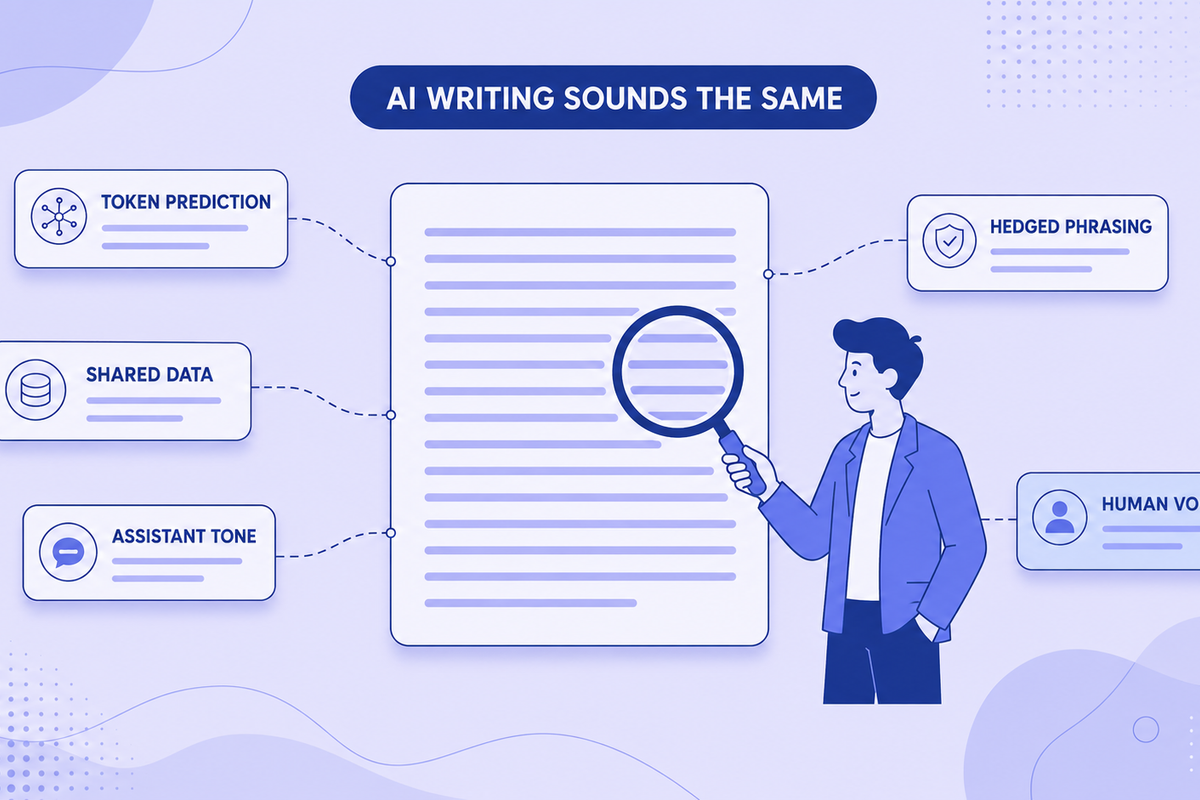
Why All AI Writing Sounds the Same (+ How to Fix It)
AI writing sounds identical due to token prediction and training overlap. Learn the technical causes plus practical fixes for style and watermarks.
Read more: Why All AI Writing Sounds the ...
Can Employers Tell If You Used AI? Spotting AI-Generated Text in Job Applications (2026)
Can recruiters detect an AI-written cover letter? What employers actually check in 2026, why AI detectors get it wrong, and why sounding like yourself matters more than hidden characters.
Read more: Can Employers Tell If You Used...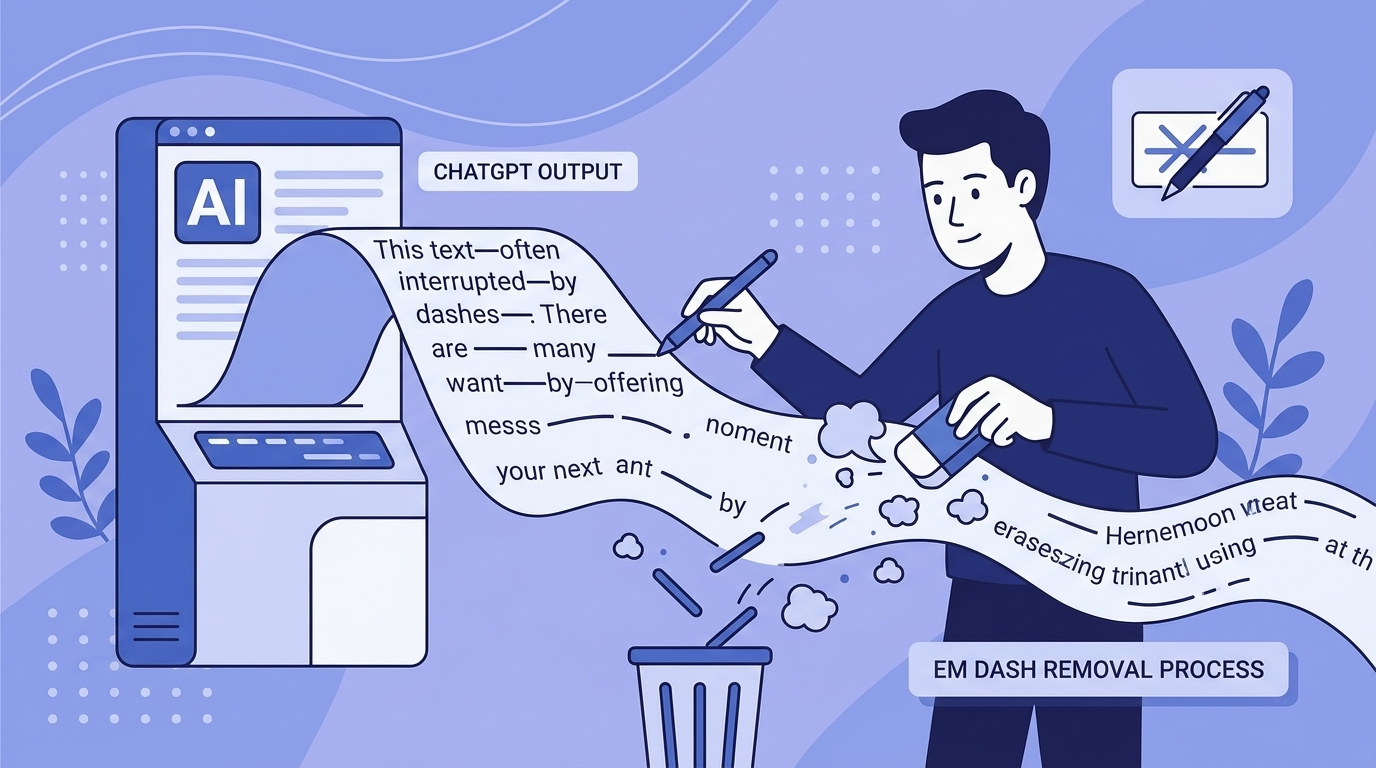
Em Dashes and ChatGPT: Why the Model Loves Them and How to Remove Them
ChatGPT overuses em dashes, a telltale AI signal. Why it happens, prompt-level fixes, and how to clean text that's already generated.
Read more: Em Dashes and ChatGPT: Why the...
Common AI Words to Avoid: The Complete List (Plus Why Your Text Gets Flagged)
50+ common AI words that flag your text as machine-written, with better alternatives. Plus what invisible Unicode characters are and the formatting problems they cause.
Read more: Common AI Words to Avoid: The ...
Does ChatGPT Watermark Text? What We Actually Know in 2026
Does ChatGPT watermark text? Here's what we actually know about invisible characters in AI output, what OpenAI has said, and what it means for detection.
Read more: Does ChatGPT Watermark Text? W...Learn MoreKnowledge Center
Explore technical explanations of AI watermarking, detection methods, and removal techniques. Each article covers mechanisms, applications, and limitations.
What Are AI Watermarks? (Text Watermarks Explained)
AI watermarks are invisible markers embedded into text generated by large language models (LLMs). Their purpose is to help identify whether a piece...
Read article: What Are AI Watermarks? (...Watermark Removal vs AI Detection: What's the Difference?
AI watermark removal and AI content detection are two separate processes that address different parts of how large language models (LLMs) generate ...
Read article: Watermark Removal vs AI D...Token Distribution in AI Watermarking: Why It Matters for Detection
Token distribution in AI watermarking refers to the intentional manipulation of token probability patterns within LLM-generated text to embed a hid...
Read article: Token Distribution in AI ...Why AI Detectors Fail: False Positives, False Negatives, and Model Bias
AI detectors attempt to estimate whether a piece of text was generated by a large language model (LLM). They rely on statistical patterns, token en...
Read article: Why AI Detectors Fail: Fa...Your Feedback MattersMissing Something? Have Ideas for Improvement?
We're constantly improving this tool and your ideas help us make it even better. Tell us what features you'd love to see!
Request a Feature
Have an idea for a new feature? Want to suggest an improvement? We listen and implement the best ideas!
New feature ideasImprovement suggestionsUser experience feedbackGeneral feedbackShare NowEvery idea counts - together we make this tool even better!Help & SupportFrequently Asked Questions
Find answers to the most common questions about our AI watermark remover.
AI watermarks are invisible characters, like zero-width spaces, that some AI tools insert into generated text. They don't affect readability, and their presence or absence has no bearing on whether AI-detection tools flag the text.
Our tool scans your text for invisible characters commonly used as AI watermarks, such as zero-width spaces and ASCII control characters. It then highlights these markers and can remove them completely while preserving your original content.
No. All text processing happens directly in your browser. We don't store, log, or transmit your text anywhere. Your privacy is our priority.
We detect various invisible characters including zero-width spaces, zero-width joiners, soft hyphens, word joiners, and ASCII control characters that AI tools might use as watermarks.
No. The tool only removes invisible characters used as watermarks. Your visible text, formatting, and meaning remain exactly the same.
Yes, the free version currently has a 500-character limit per operation. Signed-in users get 1,500 characters. This helps ensure fast processing and optimal performance.
Yes! You can upload Word (.docx) documents directly to our tool. We'll scan and remove invisible watermark characters from all sections including main content, headers, footers, footnotes, and comments—all while preserving your document's formatting and layout. Processing happens entirely in your browser, so your documents remain private.
Yes! You can upload Apple Pages (.pages) documents directly to our tool. We support both modern and legacy Pages formats. We'll scan and remove invisible watermark characters from your entire document while preserving all formatting, styles, and layout. All processing happens locally in your browser, ensuring your documents stay completely private.
Your documents are 100% secure and never leave your device. All document processing happens entirely in your browser using JavaScript. When you upload a Word or Pages document, it's read and modified locally on your computer—we never send your files to any server. This means your sensitive documents, personal information, and private content remain completely confidential. Even we can't see what you're processing. This client-side approach ensures maximum privacy and security for your documents.
If you clean a document using our document uploader and then copy-paste the text into the text detection area, you might see watermarks detected. This is normal and doesn't mean the cleaning failed. Here's why: Document cleaning preserves all formatting (bold, italics, spacing, etc.) to keep your document looking identical. When you copy this formatted text, some harmless formatting characters (like special spaces or unicode formatting marks) come along. Our text detection tool, which is designed to be more aggressive, might flag these formatting characters as potential watermarks. The document itself is clean—these are just formatting artifacts from the copy-paste process, not actual AI watermarks. For best results, use the cleaned document directly rather than copy-pasting its content.
Zero-width characters are invisible Unicode characters that take up no visual space but exist in the text data. Some AI systems, including ChatGPT, insert these into generated text as a byproduct of how the content was produced. Common types include zero-width spaces (U+200B), zero-width joiners (U+200D), and zero-width non-joiners (U+200C). Our tool detects and removes these invisible markers.
Our tool is free, processes text locally in your browser for privacy, and works on text from any source, because it operates on characters rather than on the model. Unlike other tools, we never store your text, offer document cleaning for Word and Pages files, and give signed-in users a 1,500-character limit, unlimited with Premium.
Yes! Simply copy text from ChatGPT, Claude, Gemini, or any AI chat and paste it directly into our tool. Our invisible character detector highlights any hidden characters, and you can clean the text with one click. This clean paste workflow is designed to be fast and seamless.
Paste your text into our detector tool. We'll scan for dozens of invisible Unicode characters, including zero-width spaces, zero-width joiners and other zero-width and control characters. Detected watermarks are highlighted so you can see exactly where they are in your text.
More Questions?
Try our tool and discover for yourself how easy it is!
Remove AI Watermarksfrom ChatGPT Text
Free AI watermark remover. Detect and remove invisible characters like zero-width spaces from text pasted out of AI chat tools. No registration, no data stored.
Removes invisible AI watermarksInstant detection and cleaningPrivate & secure - no data stored8,583 writers trust usDetected WatermarksExampleThis sample paragraph containshiddencharacters you can't seeCleanedThis sample paragraph contains hidden characters you can't see8,583Users100%In-browserProfessional AI Text CleaningRemove AI Watermarks
Professional AI text detection and cleaning
EditPreview500 / 5005/5 scansInstall Chrome ExtensionDashes (— – ‒ ―)60-second cooldown between scans
Sign in for enhanced features
Clean Word Documents (.docx)
Remove AI watermarks from Word files while preserving all formatting
Drop your Word document here
or click to browse files
Only .docx files • Max 50MB
All processing happens locally in your browser. Your document never leaves your device.
Clean Apple Pages Documents (.pages)
Remove AI watermarks from Pages files while preserving all formatting
Drop your Pages document here
or click to browse files
Only .pages files • Max 50MB
All processing happens locally in your browser. Your document never leaves your device.
Fully Private
All processing happens in your browser
Preserves Formatting
Your document stays visually identical
Instant Processing
Cleaned in seconds
New!Remove Gemini Image Watermarks for free
Clean AI-generated images from Google Gemini. Remove the visible watermark and strip EXIF metadata including GPS location - 100% free and private. SynthID embedded in the image pixels is not affected.
Remove visible watermarksStrip all metadata100% privateClean Images Now Before & AfterWhy Remove AI Watermarks?
Here's why you should remove invisible AI watermarks:
With Watermarks
Formatting
Invisible characters can break spacing, line wrapping, and alignment in Word, Google Docs, and PDFs
Code & data
Zero-width characters corrupt code, JSON, and find/search functions
Copy & paste
Hidden markers silently transfer between apps and documents
Privacy
Invisible characters mean what you paste isn't exactly what you copied
After Removal
Formatting
Clean, predictable spacing and layout wherever you paste
Code & data
Text behaves correctly in editors, terminals, and search
Copy & paste
What you copy is exactly what you get, with nothing hidden
Privacy
What you share should be exactly the characters you see. Cleaned text contains nothing you can't see.
Ready for clean text?Specialized Solutions for Every AI Model
Tailored guides and tools for ChatGPT, Gemini, Claude, and more.
ChatGPT Watermarks
What invisible characters appear in ChatGPT text and how to remove them.
Explore ChatGPT WatermarksGemini Watermarks
What's really in Gemini text (including SynthID) and what this tool can clean.
Explore Gemini WatermarksClaude Watermarks
How Claude's watermarking actually works, what this tool can and cannot remove, and how to clean invisible characters from Claude output.
Explore Claude WatermarksFor Students
Remove invisible characters that corrupt essay formatting, break citations, and cause copy-paste glitches in Word and Google Docs, plus guidance on using AI in line with your institution's policy.
Explore For StudentsBlogLatest Articles
Explore our latest guides on AI watermark detection, removal, and privacy.
Does Claude Watermark Its Text? Anthropic's Invisible Watermark, Explained
Claude now embeds an invisible watermark in generated text. Here's what Anthropic has confirmed, what a detected mark actually proves, and what weakens it.
Read more: Does Claude Watermark Its Text...Why All AI Writing Sounds the Same (+ How to Fix It)
AI writing sounds identical due to token prediction and training overlap. Learn the technical causes plus practical fixes for style and watermarks.
Read more: Why All AI Writing Sounds the ...Can Employers Tell If You Used AI? Spotting AI-Generated Text in Job Applications (2026)
Can recruiters detect an AI-written cover letter? What employers actually check in 2026, why AI detectors get it wrong, and why sounding like yourself matters more than hidden characters.
Read more: Can Employers Tell If You Used...Em Dashes and ChatGPT: Why the Model Loves Them and How to Remove Them
ChatGPT overuses em dashes, a telltale AI signal. Why it happens, prompt-level fixes, and how to clean text that's already generated.
Read more: Em Dashes and ChatGPT: Why the...Common AI Words to Avoid: The Complete List (Plus Why Your Text Gets Flagged)
50+ common AI words that flag your text as machine-written, with better alternatives. Plus what invisible Unicode characters are and the formatting problems they cause.
Read more: Common AI Words to Avoid: The ...Does ChatGPT Watermark Text? What We Actually Know in 2026
Does ChatGPT watermark text? Here's what we actually know about invisible characters in AI output, what OpenAI has said, and what it means for detection.
Read more: Does ChatGPT Watermark Text? W...Learn MoreKnowledge Center
Explore technical explanations of AI watermarking, detection methods, and removal techniques. Each article covers mechanisms, applications, and limitations.
What Are AI Watermarks? (Text Watermarks Explained)
AI watermarks are invisible markers embedded into text generated by large language models (LLMs). Their purpose is to help identify whether a piece...
Read article: What Are AI Watermarks? (...Watermark Removal vs AI Detection: What's the Difference?
AI watermark removal and AI content detection are two separate processes that address different parts of how large language models (LLMs) generate ...
Read article: Watermark Removal vs AI D...Token Distribution in AI Watermarking: Why It Matters for Detection
Token distribution in AI watermarking refers to the intentional manipulation of token probability patterns within LLM-generated text to embed a hid...
Read article: Token Distribution in AI ...Why AI Detectors Fail: False Positives, False Negatives, and Model Bias
AI detectors attempt to estimate whether a piece of text was generated by a large language model (LLM). They rely on statistical patterns, token en...
Read article: Why AI Detectors Fail: Fa...Your Feedback MattersMissing Something? Have Ideas for Improvement?
We're constantly improving this tool and your ideas help us make it even better. Tell us what features you'd love to see!
Request a Feature
Have an idea for a new feature? Want to suggest an improvement? We listen and implement the best ideas!
New feature ideasImprovement suggestionsUser experience feedbackGeneral feedbackShare NowEvery idea counts - together we make this tool even better!Help & SupportFrequently Asked Questions
Find answers to the most common questions about our AI watermark remover.
AI watermarks are invisible characters, like zero-width spaces, that some AI tools insert into generated text. They don't affect readability, and their presence or absence has no bearing on whether AI-detection tools flag the text.
Our tool scans your text for invisible characters commonly used as AI watermarks, such as zero-width spaces and ASCII control characters. It then highlights these markers and can remove them completely while preserving your original content.
No. All text processing happens directly in your browser. We don't store, log, or transmit your text anywhere. Your privacy is our priority.
We detect various invisible characters including zero-width spaces, zero-width joiners, soft hyphens, word joiners, and ASCII control characters that AI tools might use as watermarks.
No. The tool only removes invisible characters used as watermarks. Your visible text, formatting, and meaning remain exactly the same.
Yes, the free version currently has a 500-character limit per operation. Signed-in users get 1,500 characters. This helps ensure fast processing and optimal performance.
Yes! You can upload Word (.docx) documents directly to our tool. We'll scan and remove invisible watermark characters from all sections including main content, headers, footers, footnotes, and comments—all while preserving your document's formatting and layout. Processing happens entirely in your browser, so your documents remain private.
Yes! You can upload Apple Pages (.pages) documents directly to our tool. We support both modern and legacy Pages formats. We'll scan and remove invisible watermark characters from your entire document while preserving all formatting, styles, and layout. All processing happens locally in your browser, ensuring your documents stay completely private.
Your documents are 100% secure and never leave your device. All document processing happens entirely in your browser using JavaScript. When you upload a Word or Pages document, it's read and modified locally on your computer—we never send your files to any server. This means your sensitive documents, personal information, and private content remain completely confidential. Even we can't see what you're processing. This client-side approach ensures maximum privacy and security for your documents.
If you clean a document using our document uploader and then copy-paste the text into the text detection area, you might see watermarks detected. This is normal and doesn't mean the cleaning failed. Here's why: Document cleaning preserves all formatting (bold, italics, spacing, etc.) to keep your document looking identical. When you copy this formatted text, some harmless formatting characters (like special spaces or unicode formatting marks) come along. Our text detection tool, which is designed to be more aggressive, might flag these formatting characters as potential watermarks. The document itself is clean—these are just formatting artifacts from the copy-paste process, not actual AI watermarks. For best results, use the cleaned document directly rather than copy-pasting its content.
Zero-width characters are invisible Unicode characters that take up no visual space but exist in the text data. Some AI systems, including ChatGPT, insert these into generated text as a byproduct of how the content was produced. Common types include zero-width spaces (U+200B), zero-width joiners (U+200D), and zero-width non-joiners (U+200C). Our tool detects and removes these invisible markers.
Our tool is free, processes text locally in your browser for privacy, and works on text from any source, because it operates on characters rather than on the model. Unlike other tools, we never store your text, offer document cleaning for Word and Pages files, and give signed-in users a 1,500-character limit, unlimited with Premium.
Yes! Simply copy text from ChatGPT, Claude, Gemini, or any AI chat and paste it directly into our tool. Our invisible character detector highlights any hidden characters, and you can clean the text with one click. This clean paste workflow is designed to be fast and seamless.
Paste your text into our detector tool. We'll scan for dozens of invisible Unicode characters, including zero-width spaces, zero-width joiners and other zero-width and control characters. Detected watermarks are highlighted so you can see exactly where they are in your text.
More Questions?
Try our tool and discover for yourself how easy it is!
Remove AI Watermarksfrom ChatGPT Text
Free AI watermark remover. Detect and remove invisible characters like zero-width spaces from text pasted out of AI chat tools. No registration, no data stored.
Removes invisible AI watermarksInstant detection and cleaningPrivate & secure - no data stored8,583 writers trust usDetected WatermarksExampleThis sample paragraph containshiddencharacters you can't seeCleanedThis sample paragraph contains hidden characters you can't see8,583Users100%In-browserProfessional AI Text CleaningRemove AI Watermarks
Professional AI text detection and cleaning
EditPreview500 / 5005/5 scansInstall Chrome ExtensionDashes (— – ‒ ―)60-second cooldown between scans
Sign in for enhanced features
Clean Word Documents (.docx)
Remove AI watermarks from Word files while preserving all formatting
Drop your Word document here
or click to browse files
Only .docx files • Max 50MB
All processing happens locally in your browser. Your document never leaves your device.
Clean Apple Pages Documents (.pages)
Remove AI watermarks from Pages files while preserving all formatting
Drop your Pages document here
or click to browse files
Only .pages files • Max 50MB
All processing happens locally in your browser. Your document never leaves your device.
Fully Private
All processing happens in your browser
Preserves Formatting
Your document stays visually identical
Instant Processing
Cleaned in seconds
New!Remove Gemini Image Watermarks for free
Clean AI-generated images from Google Gemini. Remove the visible watermark and strip EXIF metadata including GPS location - 100% free and private. SynthID embedded in the image pixels is not affected.
Remove visible watermarksStrip all metadata100% privateClean Images Now Before & AfterWhy Remove AI Watermarks?
Here's why you should remove invisible AI watermarks:
With Watermarks
Formatting
Invisible characters can break spacing, line wrapping, and alignment in Word, Google Docs, and PDFs
Code & data
Zero-width characters corrupt code, JSON, and find/search functions
Copy & paste
Hidden markers silently transfer between apps and documents
Privacy
Invisible characters mean what you paste isn't exactly what you copied
After Removal
Formatting
Clean, predictable spacing and layout wherever you paste
Code & data
Text behaves correctly in editors, terminals, and search
Copy & paste
What you copy is exactly what you get, with nothing hidden
Privacy
What you share should be exactly the characters you see. Cleaned text contains nothing you can't see.
Ready for clean text?Specialized Solutions for Every AI Model
Tailored guides and tools for ChatGPT, Gemini, Claude, and more.
ChatGPT Watermarks
What invisible characters appear in ChatGPT text and how to remove them.
Explore ChatGPT WatermarksGemini Watermarks
What's really in Gemini text (including SynthID) and what this tool can clean.
Explore Gemini WatermarksClaude Watermarks
How Claude's watermarking actually works, what this tool can and cannot remove, and how to clean invisible characters from Claude output.
Explore Claude WatermarksFor Students
Remove invisible characters that corrupt essay formatting, break citations, and cause copy-paste glitches in Word and Google Docs, plus guidance on using AI in line with your institution's policy.
Explore For StudentsBlogLatest Articles
Explore our latest guides on AI watermark detection, removal, and privacy.
Does Claude Watermark Its Text? Anthropic's Invisible Watermark, Explained
Claude now embeds an invisible watermark in generated text. Here's what Anthropic has confirmed, what a detected mark actually proves, and what weakens it.
Read more: Does Claude Watermark Its Text...Why All AI Writing Sounds the Same (+ How to Fix It)
AI writing sounds identical due to token prediction and training overlap. Learn the technical causes plus practical fixes for style and watermarks.
Read more: Why All AI Writing Sounds the ...Can Employers Tell If You Used AI? Spotting AI-Generated Text in Job Applications (2026)
Can recruiters detect an AI-written cover letter? What employers actually check in 2026, why AI detectors get it wrong, and why sounding like yourself matters more than hidden characters.
Read more: Can Employers Tell If You Used...Em Dashes and ChatGPT: Why the Model Loves Them and How to Remove Them
ChatGPT overuses em dashes, a telltale AI signal. Why it happens, prompt-level fixes, and how to clean text that's already generated.
Read more: Em Dashes and ChatGPT: Why the...Common AI Words to Avoid: The Complete List (Plus Why Your Text Gets Flagged)
50+ common AI words that flag your text as machine-written, with better alternatives. Plus what invisible Unicode characters are and the formatting problems they cause.
Read more: Common AI Words to Avoid: The ...Does ChatGPT Watermark Text? What We Actually Know in 2026
Does ChatGPT watermark text? Here's what we actually know about invisible characters in AI output, what OpenAI has said, and what it means for detection.
Read more: Does ChatGPT Watermark Text? W...Learn MoreKnowledge Center
Explore technical explanations of AI watermarking, detection methods, and removal techniques. Each article covers mechanisms, applications, and limitations.
What Are AI Watermarks? (Text Watermarks Explained)
AI watermarks are invisible markers embedded into text generated by large language models (LLMs). Their purpose is to help identify whether a piece...
Read article: What Are AI Watermarks? (...Watermark Removal vs AI Detection: What's the Difference?
AI watermark removal and AI content detection are two separate processes that address different parts of how large language models (LLMs) generate ...
Read article: Watermark Removal vs AI D...Token Distribution in AI Watermarking: Why It Matters for Detection
Token distribution in AI watermarking refers to the intentional manipulation of token probability patterns within LLM-generated text to embed a hid...
Read article: Token Distribution in AI ...Why AI Detectors Fail: False Positives, False Negatives, and Model Bias
AI detectors attempt to estimate whether a piece of text was generated by a large language model (LLM). They rely on statistical patterns, token en...
Read article: Why AI Detectors Fail: Fa...Your Feedback MattersMissing Something? Have Ideas for Improvement?
We're constantly improving this tool and your ideas help us make it even better. Tell us what features you'd love to see!
Request a Feature
Have an idea for a new feature? Want to suggest an improvement? We listen and implement the best ideas!
New feature ideasImprovement suggestionsUser experience feedbackGeneral feedbackShare NowEvery idea counts - together we make this tool even better!Help & SupportFrequently Asked Questions
Find answers to the most common questions about our AI watermark remover.
AI watermarks are invisible characters, like zero-width spaces, that some AI tools insert into generated text. They don't affect readability, and their presence or absence has no bearing on whether AI-detection tools flag the text.
Our tool scans your text for invisible characters commonly used as AI watermarks, such as zero-width spaces and ASCII control characters. It then highlights these markers and can remove them completely while preserving your original content.
No. All text processing happens directly in your browser. We don't store, log, or transmit your text anywhere. Your privacy is our priority.
We detect various invisible characters including zero-width spaces, zero-width joiners, soft hyphens, word joiners, and ASCII control characters that AI tools might use as watermarks.
No. The tool only removes invisible characters used as watermarks. Your visible text, formatting, and meaning remain exactly the same.
Yes, the free version currently has a 500-character limit per operation. Signed-in users get 1,500 characters. This helps ensure fast processing and optimal performance.
Yes! You can upload Word (.docx) documents directly to our tool. We'll scan and remove invisible watermark characters from all sections including main content, headers, footers, footnotes, and comments—all while preserving your document's formatting and layout. Processing happens entirely in your browser, so your documents remain private.
Yes! You can upload Apple Pages (.pages) documents directly to our tool. We support both modern and legacy Pages formats. We'll scan and remove invisible watermark characters from your entire document while preserving all formatting, styles, and layout. All processing happens locally in your browser, ensuring your documents stay completely private.
Your documents are 100% secure and never leave your device. All document processing happens entirely in your browser using JavaScript. When you upload a Word or Pages document, it's read and modified locally on your computer—we never send your files to any server. This means your sensitive documents, personal information, and private content remain completely confidential. Even we can't see what you're processing. This client-side approach ensures maximum privacy and security for your documents.
If you clean a document using our document uploader and then copy-paste the text into the text detection area, you might see watermarks detected. This is normal and doesn't mean the cleaning failed. Here's why: Document cleaning preserves all formatting (bold, italics, spacing, etc.) to keep your document looking identical. When you copy this formatted text, some harmless formatting characters (like special spaces or unicode formatting marks) come along. Our text detection tool, which is designed to be more aggressive, might flag these formatting characters as potential watermarks. The document itself is clean—these are just formatting artifacts from the copy-paste process, not actual AI watermarks. For best results, use the cleaned document directly rather than copy-pasting its content.
Zero-width characters are invisible Unicode characters that take up no visual space but exist in the text data. Some AI systems, including ChatGPT, insert these into generated text as a byproduct of how the content was produced. Common types include zero-width spaces (U+200B), zero-width joiners (U+200D), and zero-width non-joiners (U+200C). Our tool detects and removes these invisible markers.
Our tool is free, processes text locally in your browser for privacy, and works on text from any source, because it operates on characters rather than on the model. Unlike other tools, we never store your text, offer document cleaning for Word and Pages files, and give signed-in users a 1,500-character limit, unlimited with Premium.
Yes! Simply copy text from ChatGPT, Claude, Gemini, or any AI chat and paste it directly into our tool. Our invisible character detector highlights any hidden characters, and you can clean the text with one click. This clean paste workflow is designed to be fast and seamless.
Paste your text into our detector tool. We'll scan for dozens of invisible Unicode characters, including zero-width spaces, zero-width joiners and other zero-width and control characters. Detected watermarks are highlighted so you can see exactly where they are in your text.
More Questions?
Try our tool and discover for yourself how easy it is!
Script Node.js
#!/usr/bin/env node

const fs = require('fs');

const PATTERN = /[\u200B-\u200D\uFEFF\u00AD\u2060]/g;

function checkFile(filepath) {
  try {
    const text = fs.readFileSync(filepath, 'utf-8');
    const matches = text.match(PATTERN);
    const count = matches ? matches.length : 0;

    console.log(`\n${'='.repeat(60)}`);
    console.log(`Arquivo: ${filepath}`);
    console.log('='.repeat(60));

    if (count === 0) {
      console.log('✓ Nenhuma marca d\'água detectada');
      return false;
    }

    const density = (count / text.length * 1000).toFixed(2);

    console.log(`⚠ Marcas d'água detectadas: ${count}`);
    console.log(`Densidade: ${density} por 1000 caracteres`);

    return true;
  } catch (error) {
    console.error(`Erro: ${error.message}`);
    return false;
  }
}

// Executar
const filepath = process.argv[2];
if (!filepath) {
  console.log('Uso: node check_watermarks.js <arquivo>');
  process.exit(1);
}

const hasWatermarks = checkFile(filepath);
process.exit(hasWatermarks ? 1 : 0);
Método 6: Inspeção com Editor Hexadecimal
O método mais técnico—visualizar bytes brutos.
Usando HxD (Windows) ou Hex Fiend (Mac)
Passo 1: Abrir arquivo no editor hexadecimal
Passo 2: Pesquisar padrões de bytes
Zero-Width Space: E2 80 8B
Zero-Width Non-Joiner: E2 80 8C
Zero-Width Joiner: E2 80 8D
Passo 3: Contar ocorrências
Editores hexadecimais mostram frequência de cada padrão de bytes
Passo 4: Avaliar
- Múltiplas ocorrências = provavelmente marcas d'água
- Espaçamento regular = marca d'água intencional
- Aleatório = possivelmente acidental
Método 7: Verificação Automatizada em CI/CD
Integre a detecção de marca d'água ao seu fluxo de trabalho de desenvolvimento.
GitHub Actions
name: Check for Watermarks
on: [push, pull_request]
jobs:
watermark-check:
runs-on: ubuntu-latest
steps:
- uses: actions/checkout@v2
- name: Check files for watermarks
run: |
#!/bin/bash
found_watermarks=false
for file in $(find . -name "*.txt" -o -name "*.md" -o -name "*.py"); do
if grep -q Remove AI Watermarksfrom ChatGPT Text
Free AI watermark remover. Detect and remove invisible characters like zero-width spaces from text pasted out of AI chat tools. No registration, no data stored.
Removes invisible AI watermarksInstant detection and cleaningPrivate & secure - no data stored8,583 writers trust usDetected WatermarksExampleThis sample paragraph containshiddencharacters you can't seeCleanedThis sample paragraph contains hidden characters you can't see8,583Users100%In-browserProfessional AI Text CleaningRemove AI Watermarks
Professional AI text detection and cleaning
EditPreview500 / 5005/5 scansInstall Chrome ExtensionDashes (— – ‒ ―)60-second cooldown between scans
Sign in for enhanced features
Clean Word Documents (.docx)
Remove AI watermarks from Word files while preserving all formatting
Drop your Word document here
or click to browse files
Only .docx files • Max 50MB
All processing happens locally in your browser. Your document never leaves your device.
Clean Apple Pages Documents (.pages)
Remove AI watermarks from Pages files while preserving all formatting
Drop your Pages document here
or click to browse files
Only .pages files • Max 50MB
All processing happens locally in your browser. Your document never leaves your device.
Fully Private
All processing happens in your browser
Preserves Formatting
Your document stays visually identical
Instant Processing
Cleaned in seconds
New!Remove Gemini Image Watermarks for free
Clean AI-generated images from Google Gemini. Remove the visible watermark and strip EXIF metadata including GPS location - 100% free and private. SynthID embedded in the image pixels is not affected.
Remove visible watermarksStrip all metadata100% privateClean Images Now Before & AfterWhy Remove AI Watermarks?
Here's why you should remove invisible AI watermarks:
With Watermarks
Formatting
Invisible characters can break spacing, line wrapping, and alignment in Word, Google Docs, and PDFs
Code & data
Zero-width characters corrupt code, JSON, and find/search functions
Copy & paste
Hidden markers silently transfer between apps and documents
Privacy
Invisible characters mean what you paste isn't exactly what you copied
After Removal
Formatting
Clean, predictable spacing and layout wherever you paste
Code & data
Text behaves correctly in editors, terminals, and search
Copy & paste
What you copy is exactly what you get, with nothing hidden
Privacy
What you share should be exactly the characters you see. Cleaned text contains nothing you can't see.
Ready for clean text?Specialized Solutions for Every AI Model
Tailored guides and tools for ChatGPT, Gemini, Claude, and more.
ChatGPT Watermarks
What invisible characters appear in ChatGPT text and how to remove them.
Explore ChatGPT WatermarksGemini Watermarks
What's really in Gemini text (including SynthID) and what this tool can clean.
Explore Gemini WatermarksClaude Watermarks
How Claude's watermarking actually works, what this tool can and cannot remove, and how to clean invisible characters from Claude output.
Explore Claude WatermarksFor Students
Remove invisible characters that corrupt essay formatting, break citations, and cause copy-paste glitches in Word and Google Docs, plus guidance on using AI in line with your institution's policy.
Explore For StudentsBlogLatest Articles
Explore our latest guides on AI watermark detection, removal, and privacy.
Does Claude Watermark Its Text? Anthropic's Invisible Watermark, Explained
Claude now embeds an invisible watermark in generated text. Here's what Anthropic has confirmed, what a detected mark actually proves, and what weakens it.
Read more: Does Claude Watermark Its Text...Why All AI Writing Sounds the Same (+ How to Fix It)
AI writing sounds identical due to token prediction and training overlap. Learn the technical causes plus practical fixes for style and watermarks.
Read more: Why All AI Writing Sounds the ...Can Employers Tell If You Used AI? Spotting AI-Generated Text in Job Applications (2026)
Can recruiters detect an AI-written cover letter? What employers actually check in 2026, why AI detectors get it wrong, and why sounding like yourself matters more than hidden characters.
Read more: Can Employers Tell If You Used...Em Dashes and ChatGPT: Why the Model Loves Them and How to Remove Them
ChatGPT overuses em dashes, a telltale AI signal. Why it happens, prompt-level fixes, and how to clean text that's already generated.
Read more: Em Dashes and ChatGPT: Why the...Common AI Words to Avoid: The Complete List (Plus Why Your Text Gets Flagged)
50+ common AI words that flag your text as machine-written, with better alternatives. Plus what invisible Unicode characters are and the formatting problems they cause.
Read more: Common AI Words to Avoid: The ...Does ChatGPT Watermark Text? What We Actually Know in 2026
Does ChatGPT watermark text? Here's what we actually know about invisible characters in AI output, what OpenAI has said, and what it means for detection.
Read more: Does ChatGPT Watermark Text? W...Learn MoreKnowledge Center
Explore technical explanations of AI watermarking, detection methods, and removal techniques. Each article covers mechanisms, applications, and limitations.
What Are AI Watermarks? (Text Watermarks Explained)
AI watermarks are invisible markers embedded into text generated by large language models (LLMs). Their purpose is to help identify whether a piece...
Read article: What Are AI Watermarks? (...Watermark Removal vs AI Detection: What's the Difference?
AI watermark removal and AI content detection are two separate processes that address different parts of how large language models (LLMs) generate ...
Read article: Watermark Removal vs AI D...Token Distribution in AI Watermarking: Why It Matters for Detection
Token distribution in AI watermarking refers to the intentional manipulation of token probability patterns within LLM-generated text to embed a hid...
Read article: Token Distribution in AI ...Why AI Detectors Fail: False Positives, False Negatives, and Model Bias
AI detectors attempt to estimate whether a piece of text was generated by a large language model (LLM). They rely on statistical patterns, token en...
Read article: Why AI Detectors Fail: Fa...Your Feedback MattersMissing Something? Have Ideas for Improvement?
We're constantly improving this tool and your ideas help us make it even better. Tell us what features you'd love to see!
Request a Feature
Have an idea for a new feature? Want to suggest an improvement? We listen and implement the best ideas!
New feature ideasImprovement suggestionsUser experience feedbackGeneral feedbackShare NowEvery idea counts - together we make this tool even better!Help & SupportFrequently Asked Questions
Find answers to the most common questions about our AI watermark remover.
AI watermarks are invisible characters, like zero-width spaces, that some AI tools insert into generated text. They don't affect readability, and their presence or absence has no bearing on whether AI-detection tools flag the text.
Our tool scans your text for invisible characters commonly used as AI watermarks, such as zero-width spaces and ASCII control characters. It then highlights these markers and can remove them completely while preserving your original content.
No. All text processing happens directly in your browser. We don't store, log, or transmit your text anywhere. Your privacy is our priority.
We detect various invisible characters including zero-width spaces, zero-width joiners, soft hyphens, word joiners, and ASCII control characters that AI tools might use as watermarks.
No. The tool only removes invisible characters used as watermarks. Your visible text, formatting, and meaning remain exactly the same.
Yes, the free version currently has a 500-character limit per operation. Signed-in users get 1,500 characters. This helps ensure fast processing and optimal performance.
Yes! You can upload Word (.docx) documents directly to our tool. We'll scan and remove invisible watermark characters from all sections including main content, headers, footers, footnotes, and comments—all while preserving your document's formatting and layout. Processing happens entirely in your browser, so your documents remain private.
Yes! You can upload Apple Pages (.pages) documents directly to our tool. We support both modern and legacy Pages formats. We'll scan and remove invisible watermark characters from your entire document while preserving all formatting, styles, and layout. All processing happens locally in your browser, ensuring your documents stay completely private.
Your documents are 100% secure and never leave your device. All document processing happens entirely in your browser using JavaScript. When you upload a Word or Pages document, it's read and modified locally on your computer—we never send your files to any server. This means your sensitive documents, personal information, and private content remain completely confidential. Even we can't see what you're processing. This client-side approach ensures maximum privacy and security for your documents.
If you clean a document using our document uploader and then copy-paste the text into the text detection area, you might see watermarks detected. This is normal and doesn't mean the cleaning failed. Here's why: Document cleaning preserves all formatting (bold, italics, spacing, etc.) to keep your document looking identical. When you copy this formatted text, some harmless formatting characters (like special spaces or unicode formatting marks) come along. Our text detection tool, which is designed to be more aggressive, might flag these formatting characters as potential watermarks. The document itself is clean—these are just formatting artifacts from the copy-paste process, not actual AI watermarks. For best results, use the cleaned document directly rather than copy-pasting its content.
Zero-width characters are invisible Unicode characters that take up no visual space but exist in the text data. Some AI systems, including ChatGPT, insert these into generated text as a byproduct of how the content was produced. Common types include zero-width spaces (U+200B), zero-width joiners (U+200D), and zero-width non-joiners (U+200C). Our tool detects and removes these invisible markers.
Our tool is free, processes text locally in your browser for privacy, and works on text from any source, because it operates on characters rather than on the model. Unlike other tools, we never store your text, offer document cleaning for Word and Pages files, and give signed-in users a 1,500-character limit, unlimited with Premium.
Yes! Simply copy text from ChatGPT, Claude, Gemini, or any AI chat and paste it directly into our tool. Our invisible character detector highlights any hidden characters, and you can clean the text with one click. This clean paste workflow is designed to be fast and seamless.
Paste your text into our detector tool. We'll scan for dozens of invisible Unicode characters, including zero-width spaces, zero-width joiners and other zero-width and control characters. Detected watermarks are highlighted so you can see exactly where they are in your text.
More Questions?
Try our tool and discover for yourself how easy it is!
Hook Pre-Commit
#!/bin/bash
# .git/hooks/pre-commit
echo "Verificando marcas d'água..."
FILES=$(git diff --cached --name-only --diff-filter=ACM)
for FILE in $FILES; do
if [ -f "$FILE" ]; then
if grep -q Remove AI Watermarksfrom ChatGPT Text
Free AI watermark remover. Detect and remove invisible characters like zero-width spaces from text pasted out of AI chat tools. No registration, no data stored.
Removes invisible AI watermarksInstant detection and cleaningPrivate & secure - no data stored8,583 writers trust usDetected WatermarksExampleThis sample paragraph containshiddencharacters you can't seeCleanedThis sample paragraph contains hidden characters you can't see8,583Users100%In-browserProfessional AI Text CleaningRemove AI Watermarks
Professional AI text detection and cleaning
EditPreview500 / 5005/5 scansInstall Chrome ExtensionDashes (— – ‒ ―)60-second cooldown between scans
Sign in for enhanced features
Clean Word Documents (.docx)
Remove AI watermarks from Word files while preserving all formatting
Drop your Word document here
or click to browse files
Only .docx files • Max 50MB
All processing happens locally in your browser. Your document never leaves your device.
Clean Apple Pages Documents (.pages)
Remove AI watermarks from Pages files while preserving all formatting
Drop your Pages document here
or click to browse files
Only .pages files • Max 50MB
All processing happens locally in your browser. Your document never leaves your device.
Fully Private
All processing happens in your browser
Preserves Formatting
Your document stays visually identical
Instant Processing
Cleaned in seconds
New!Remove Gemini Image Watermarks for free
Clean AI-generated images from Google Gemini. Remove the visible watermark and strip EXIF metadata including GPS location - 100% free and private. SynthID embedded in the image pixels is not affected.
Remove visible watermarksStrip all metadata100% privateClean Images Now Before & AfterWhy Remove AI Watermarks?
Here's why you should remove invisible AI watermarks:
With Watermarks
Formatting
Invisible characters can break spacing, line wrapping, and alignment in Word, Google Docs, and PDFs
Code & data
Zero-width characters corrupt code, JSON, and find/search functions
Copy & paste
Hidden markers silently transfer between apps and documents
Privacy
Invisible characters mean what you paste isn't exactly what you copied
After Removal
Formatting
Clean, predictable spacing and layout wherever you paste
Code & data
Text behaves correctly in editors, terminals, and search
Copy & paste
What you copy is exactly what you get, with nothing hidden
Privacy
What you share should be exactly the characters you see. Cleaned text contains nothing you can't see.
Ready for clean text?Specialized Solutions for Every AI Model
Tailored guides and tools for ChatGPT, Gemini, Claude, and more.
ChatGPT Watermarks
What invisible characters appear in ChatGPT text and how to remove them.
Explore ChatGPT WatermarksGemini Watermarks
What's really in Gemini text (including SynthID) and what this tool can clean.
Explore Gemini WatermarksClaude Watermarks
How Claude's watermarking actually works, what this tool can and cannot remove, and how to clean invisible characters from Claude output.
Explore Claude WatermarksFor Students
Remove invisible characters that corrupt essay formatting, break citations, and cause copy-paste glitches in Word and Google Docs, plus guidance on using AI in line with your institution's policy.
Explore For StudentsBlogLatest Articles
Explore our latest guides on AI watermark detection, removal, and privacy.
Does Claude Watermark Its Text? Anthropic's Invisible Watermark, Explained
Claude now embeds an invisible watermark in generated text. Here's what Anthropic has confirmed, what a detected mark actually proves, and what weakens it.
Read more: Does Claude Watermark Its Text...Why All AI Writing Sounds the Same (+ How to Fix It)
AI writing sounds identical due to token prediction and training overlap. Learn the technical causes plus practical fixes for style and watermarks.
Read more: Why All AI Writing Sounds the ...Can Employers Tell If You Used AI? Spotting AI-Generated Text in Job Applications (2026)
Can recruiters detect an AI-written cover letter? What employers actually check in 2026, why AI detectors get it wrong, and why sounding like yourself matters more than hidden characters.
Read more: Can Employers Tell If You Used...Em Dashes and ChatGPT: Why the Model Loves Them and How to Remove Them
ChatGPT overuses em dashes, a telltale AI signal. Why it happens, prompt-level fixes, and how to clean text that's already generated.
Read more: Em Dashes and ChatGPT: Why the...Common AI Words to Avoid: The Complete List (Plus Why Your Text Gets Flagged)
50+ common AI words that flag your text as machine-written, with better alternatives. Plus what invisible Unicode characters are and the formatting problems they cause.
Read more: Common AI Words to Avoid: The ...Does ChatGPT Watermark Text? What We Actually Know in 2026
Does ChatGPT watermark text? Here's what we actually know about invisible characters in AI output, what OpenAI has said, and what it means for detection.
Read more: Does ChatGPT Watermark Text? W...Learn MoreKnowledge Center
Explore technical explanations of AI watermarking, detection methods, and removal techniques. Each article covers mechanisms, applications, and limitations.
What Are AI Watermarks? (Text Watermarks Explained)
AI watermarks are invisible markers embedded into text generated by large language models (LLMs). Their purpose is to help identify whether a piece...
Read article: What Are AI Watermarks? (...Watermark Removal vs AI Detection: What's the Difference?
AI watermark removal and AI content detection are two separate processes that address different parts of how large language models (LLMs) generate ...
Read article: Watermark Removal vs AI D...Token Distribution in AI Watermarking: Why It Matters for Detection
Token distribution in AI watermarking refers to the intentional manipulation of token probability patterns within LLM-generated text to embed a hid...
Read article: Token Distribution in AI ...Why AI Detectors Fail: False Positives, False Negatives, and Model Bias
AI detectors attempt to estimate whether a piece of text was generated by a large language model (LLM). They rely on statistical patterns, token en...
Read article: Why AI Detectors Fail: Fa...Your Feedback MattersMissing Something? Have Ideas for Improvement?
We're constantly improving this tool and your ideas help us make it even better. Tell us what features you'd love to see!
Request a Feature
Have an idea for a new feature? Want to suggest an improvement? We listen and implement the best ideas!
New feature ideasImprovement suggestionsUser experience feedbackGeneral feedbackShare NowEvery idea counts - together we make this tool even better!Help & SupportFrequently Asked Questions
Find answers to the most common questions about our AI watermark remover.
AI watermarks are invisible characters, like zero-width spaces, that some AI tools insert into generated text. They don't affect readability, and their presence or absence has no bearing on whether AI-detection tools flag the text.
Our tool scans your text for invisible characters commonly used as AI watermarks, such as zero-width spaces and ASCII control characters. It then highlights these markers and can remove them completely while preserving your original content.
No. All text processing happens directly in your browser. We don't store, log, or transmit your text anywhere. Your privacy is our priority.
We detect various invisible characters including zero-width spaces, zero-width joiners, soft hyphens, word joiners, and ASCII control characters that AI tools might use as watermarks.
No. The tool only removes invisible characters used as watermarks. Your visible text, formatting, and meaning remain exactly the same.
Yes, the free version currently has a 500-character limit per operation. Signed-in users get 1,500 characters. This helps ensure fast processing and optimal performance.
Yes! You can upload Word (.docx) documents directly to our tool. We'll scan and remove invisible watermark characters from all sections including main content, headers, footers, footnotes, and comments—all while preserving your document's formatting and layout. Processing happens entirely in your browser, so your documents remain private.
Yes! You can upload Apple Pages (.pages) documents directly to our tool. We support both modern and legacy Pages formats. We'll scan and remove invisible watermark characters from your entire document while preserving all formatting, styles, and layout. All processing happens locally in your browser, ensuring your documents stay completely private.
Your documents are 100% secure and never leave your device. All document processing happens entirely in your browser using JavaScript. When you upload a Word or Pages document, it's read and modified locally on your computer—we never send your files to any server. This means your sensitive documents, personal information, and private content remain completely confidential. Even we can't see what you're processing. This client-side approach ensures maximum privacy and security for your documents.
If you clean a document using our document uploader and then copy-paste the text into the text detection area, you might see watermarks detected. This is normal and doesn't mean the cleaning failed. Here's why: Document cleaning preserves all formatting (bold, italics, spacing, etc.) to keep your document looking identical. When you copy this formatted text, some harmless formatting characters (like special spaces or unicode formatting marks) come along. Our text detection tool, which is designed to be more aggressive, might flag these formatting characters as potential watermarks. The document itself is clean—these are just formatting artifacts from the copy-paste process, not actual AI watermarks. For best results, use the cleaned document directly rather than copy-pasting its content.
Zero-width characters are invisible Unicode characters that take up no visual space but exist in the text data. Some AI systems, including ChatGPT, insert these into generated text as a byproduct of how the content was produced. Common types include zero-width spaces (U+200B), zero-width joiners (U+200D), and zero-width non-joiners (U+200C). Our tool detects and removes these invisible markers.
Our tool is free, processes text locally in your browser for privacy, and works on text from any source, because it operates on characters rather than on the model. Unlike other tools, we never store your text, offer document cleaning for Word and Pages files, and give signed-in users a 1,500-character limit, unlimited with Premium.
Yes! Simply copy text from ChatGPT, Claude, Gemini, or any AI chat and paste it directly into our tool. Our invisible character detector highlights any hidden characters, and you can clean the text with one click. This clean paste workflow is designed to be fast and seamless.
Paste your text into our detector tool. We'll scan for dozens of invisible Unicode characters, including zero-width spaces, zero-width joiners and other zero-width and control characters. Detected watermarks are highlighted so you can see exactly where they are in your text.
More Questions?
Try our tool and discover for yourself how easy it is!
Entendendo os Resultados da Verificação
O Que Diferentes Resultados Significam
Resultado: "0 marcas d'água detectadas"
- Texto está limpo
- Seguro para usar como está
- Nenhum caractere invisível presente
Resultado: "1-5 marcas d'água detectadas, densidade baixa"
- Possivelmente acidental
- Pode ser uso legítimo de Unicode (texto RTL, etc.)
- Verifique o contexto antes de concluir geração por IA
Resultado: "10-50 marcas d'água detectadas, densidade média"
- Provavelmente marca d'água intencional
- Alta probabilidade de geração por IA
- Considere remoção se causar problemas
Resultado: "50+ marcas d'água detectadas, densidade alta"
- Definitivamente marca d'água intencional
- Quase certamente gerado por IA
- Remoção fortemente recomendada
Análise de Padrões
Padrão de espaçamento regular:
Word[ZWSP]word[ZWSP]word[ZWSP]word
= Marca d'água sistemática de IA
Distribuição aleatória:
Word[ZWSP]word[ZWNJ]several[ZWJ]words[ZWSP]later
= Marca d'água sofisticada ou acidental
Agrupado:
Normal text here[ZWSP][ZWNJ][ZWJ]more normal text
= Artefato de copiar-colar ou problema de codificação
Solucionando Problemas de Detecção
"Nenhuma marca d'água encontrada" mas o texto parece suspeito
Possíveis razões:
- Marcas d'água estatísticas (não baseadas em caracteres)
- Marcas d'água já removidas
- Modelo de IA diferente (não marca d'água)
- Escrito por humano com estilo de IA
Próximos passos:
- Use detectores de conteúdo IA (GPTZero, Originality.ai)
- Analise padrões de escrita manualmente
- Verifique múltiplas seções
Ferramenta de detecção dá erro
Problemas comuns:
- Codificação do arquivo não é UTF-8
- Arquivo corrompido
- Formato não suportado
- Arquivo muito grande
Soluções:
# Converter para UTF-8
iconv -f ISO-8859-1 -t UTF-8 input.txt > output.txt

# Verificar codificação
file -i filename.txt

# Reduzir tamanho do arquivo
head -n 1000 large_file.txt > sample.txt
Métodos diferentes dão resultados diferentes
Por quê:
- Caracteres diferentes verificados
- Limites de sensibilidade diferentes
- Alguns métodos detectam padrões estatísticos
- Alguns detectam apenas marcas d'água de caracteres
Resolução: Use o método mais abrangente (verificador online) como autoritativo
Melhores Práticas para Verificação Regular
Para Educadores
Fluxo de trabalho:
1. Receber trabalho do aluno
2. Executar verificação rápida usando [ferramenta online](/)
3. Se marcas d'água encontradas:
   - Revisar o conteúdo
   - Verificar se o uso de IA foi divulgado
   - Avaliar adequação
4. Se suspeito:
   - Usar detectores de IA adicionais
   - Conversar com o aluno
Para Desenvolvedores
Fluxo de trabalho Git:
# Adicionar hook pre-commit
cp check_watermarks.sh .git/hooks/pre-commit
chmod +x .git/hooks/pre-commit

# Verificar antes de pull requests
python check_watermarks.py $(git diff --name-only main...HEAD)
Para Gerentes de Conteúdo
Lista de verificação de publicação:
☐ Executar verificação de marca d'água em todo conteúdo
☐ Remover se encontradas (a menos que divulgação seja necessária)
☐ Verificar formatação intacta após remoção
☐ Revisão final de QA
☐ Publicar
Para Organizações
Estrutura de política:
1. Estabelecer política de uso de IA
2. Exigir verificação de marca d'água para:
   - Conteúdo voltado ao cliente
   - Materiais publicados
   - Documentos legais
3. Treinar equipe em métodos de verificação
4. Implementar verificação automatizada quando possível
5. Auditorias regulares
Conclusão
Verificar marcas d'água do ChatGPT não precisa ser complicado. Seja usando o verificador online instantâneo, scripts de linha de comando ou métodos de editor de texto, a chave é ter um processo confiável em que você possa confiar.
Recomendações Rápidas:
- Mais rápido: Verificador online (5-10 segundos)
- Mais completo: DevTools do navegador com mapeamento de posição
- Automação: Script Python ou hooks pre-commit
- Não técnico: Visibilidade do editor de texto + teste de contagem de caracteres
Lembre-se: detectar marcas d'água é o primeiro passo. Entender o que fazer com essa informação—respeitar a integridade acadêmica, corrigir problemas técnicos, manter a privacidade—é igualmente importante.
Verifique Seu Texto Agora - Ferramenta Gratuita
Pronto para verificar marcas d'água do ChatGPT?
👉 Check for Watermarks - Free & Instant
Recursos:
- ⚡ Resultados em 5-10 segundos
- 🔍 Detecta todos os tipos de marca d'água
- 📊 Análise detalhada com visualização
- 📄 Suporta texto e documentos
- 🔒 100% privado (baseado no navegador)
- ✅ Remoção com um clique se encontradas
- 🆓 Verificações ilimitadas gratuitas
Artigos Relacionados:
- How to Detect ChatGPT Watermarks
- Invisible Characters in ChatGPT Text
- How to Remove ChatGPT Watermarks
Perguntas? Visite nossa FAQ ou verifique seu texto agora.
Artigos de Conhecimento Relacionados
Pronto para Remover Marcas d'Água de IA?
Experimente nossa ferramenta gratuita de remoção de marcas d'água de IA. Detecte e limpe caracteres invisíveis do seu texto e documentos em segundos.
Experimentar Removedor de Marca d'Água GPTArtigos Recomendados
Recrutador Consegue Saber se Usei ChatGPT no Currículo? Guia 2026 para Candidatos e RH
Recrutadores e o ATS da Gupy detectam currículo e carta feitos com ChatGPT? Veja como a IA é identificada na candidatura e como evitar ser reprovado em 2026.

Onde Verificar Escrita de IA: As Melhores Ferramentas e Métodos para 2026
Descubra as melhores ferramentas e métodos para verificar texto gerado por IA em 2026, desde detectores baseados em padrões como GPTZero até scanners de marca d'água invisível.
Travessão e ChatGPT: Por que a IA usa tanto e como remover do texto
ChatGPT usa travessão (—) numa frequência que entrega o texto como IA. Por que acontece, prompts que param o vício e como limpar texto já gerado.
Palavras Típicas de IA Para Evitar: A Lista Completa (E Por Que Seu Texto Continua Sendo Detectado)
A lista completa das palavras típicas de IA em português que entregam seu texto. Mais por que detectores analisam a escrita visível — e o que caracteres invisíveis de fato afetam.